Photo preparation
AI Family Portrait Photo Guide: Choose References That Work
See which individual photos work together in a family portrait. Compare lighting, camera angle and repeated references before you upload the family’s photos.
In this guide
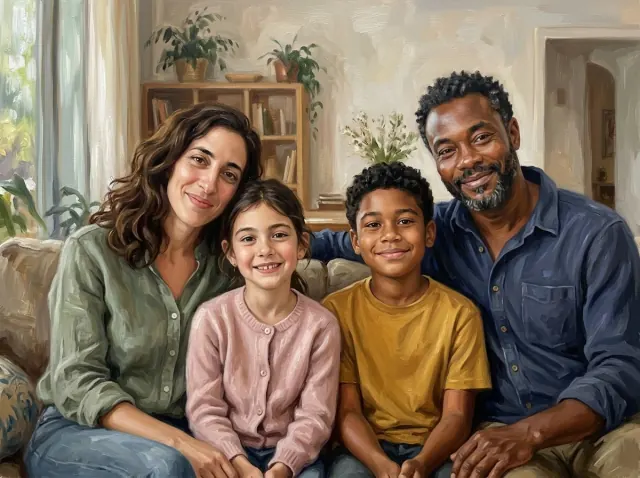
For a useful AI family portrait, choose clear views of the people you want together, then check each face in the preview. Together Portraits accepts 1–10 photo files. Individual photos and group photos can be combined. The number of files is not the number of people, and adding more photos does not guarantee a better likeness.
Create family portraits from separate photos with a short plan: decide who belongs in the picture, give each reference a purpose and review everyone in the free preview. The AI family portrait page shows the full collection of examples. This guide focuses on preparing your own references.
Start with a people list
Choose photos of everyone you want in the artwork. For two parents and two children, your target is four people even if they appear across only two photographs. Together Portraits uses the people shown in your photos to compose the group. If a group photo includes someone you want to leave out, choose a closer photo or request their removal after the preview.
Choose photos from the age you want represented. An older photo of a parent and a recent one can show very different appearances. References from a similar period make that choice clearer. Review the age and expression in the preview.
What makes a useful reference photo?
Look at the face before the background. You should be able to see the eyes, mouth, hairstyle and any important glasses or facial hair. A small face at the back of a large gathering may carry less useful detail than an ordinary close photograph.
| What you see | What to do | What to check later |
|---|---|---|
| A clear face with a familiar expression | Use it as the main reference for that person. | Eyes, mouth, age and expression. |
| A face partly hidden by another person | Add a clearer view if you have one. | Whether the hidden features were interpreted convincingly. |
| Several pictures of the same person | Choose views that add useful facial detail. | That the person appears once. |
| Very different ages in different photos | Choose references from the age you want shown. | That the intended appearance was used. |
| A pet photographed separately | Choose a clear face and visible coat markings. | Markings, ears and size beside the people. |
Original files are preferable to screenshots of pictures in a chat. A natural snapshot can be a good reference; you do not need matching outfits, identical backgrounds or professional studio lighting.
A worked example: two photos, four people
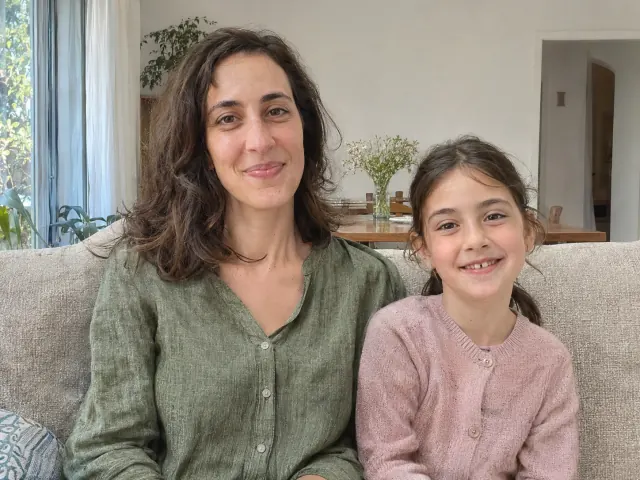
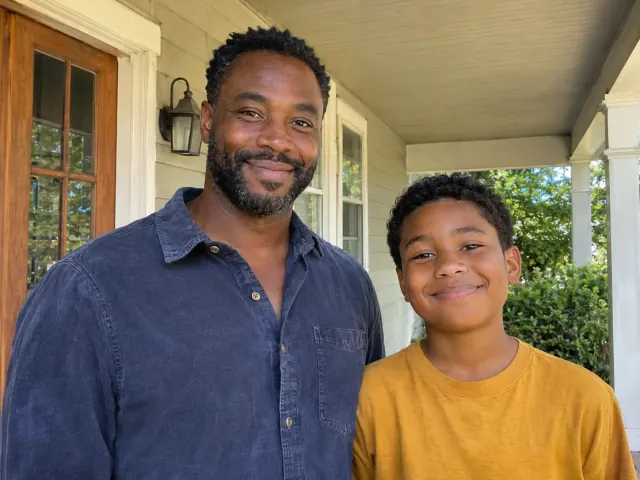
The first picture supplies the mother and daughter; the second supplies the father and son. The painting brings all four into a shared setting. Their clothes and facial features provide comparison points, while the room and poses are interpreted as part of a new artwork.
Start your own preview by uploading the photos and choosing landscape or portrait. Check that every person appears once, then look at the arrangement. You can ask for changes after seeing the result.
Using more than one photo of the same person
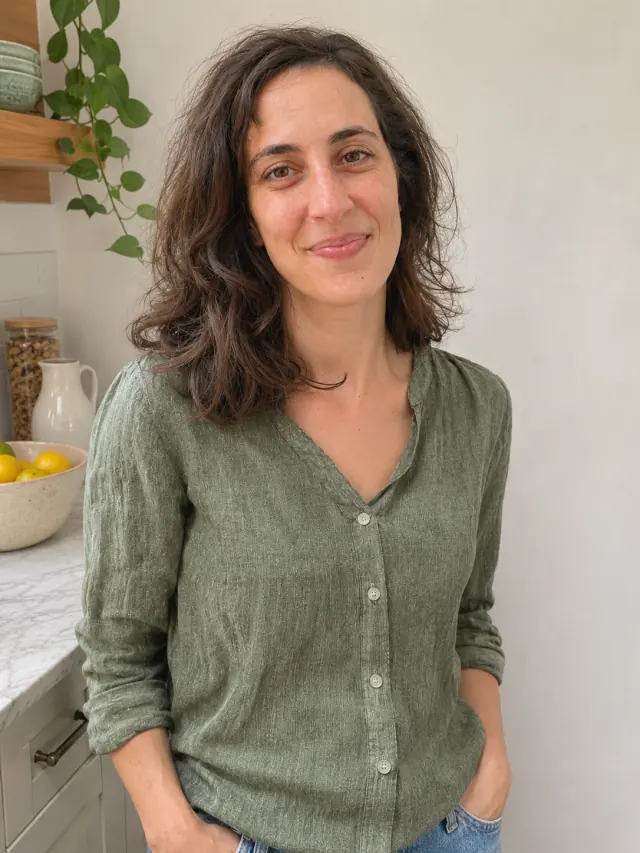
An extra view can help show a face, hairstyle or familiar expression. Together Portraits uses the photos to recognise repeated appearances and bring each person into the group once. Check the preview for anyone missing or duplicated.
Use photos from a similar age and avoid adding several nearly identical pictures. A smaller set of clear references is easier for you to compare with the result.
Leaving someone out of the group
If a source photo includes someone you do not want in the portrait, a photo showing only the intended people is the clearest starting point. You can also create the preview, choose Edit portrait and request a change. For example: “Remove the adult woman in green. Keep Grandma and the girl, with their faces and clothes as they are.”
Check the new version before ordering. This changes a painted composition. For work on an existing photograph, the guide to adding a person to a photo explains layers and masks.
Check people first, composition second
Before looking at frames or print sizes, compare the preview with the references:
- Count the people and pets. Check that nobody is missing or duplicated.
- Compare each face: eyes, smile, hair, glasses and the intended age.
- Look at hands, arms, overlaps and relative sizes.
- Check clothing or accessories that matter to the family.
- Review the whole composition and the available portrait or landscape framing.
Request one clear change at a time, and say what should stay. “Keep the faces and positions; lighten the background” gives you a specific result to assess. Select the version you actually want before ordering.
What should you expect from the free preview?
The preview lets you judge your own references before purchasing. Creating a preview is free, with limits on previews and edits. Prints and digital downloads are paid. See current prices for the available formats.
Together Portraits creates an oil-style interpretation. It does not guarantee exact facial reproduction, recover missing historical details or preserve every pixel of an original photograph. Use photographs you own or have permission to use, and choose a result that feels right to the people represented.