Print & framing guides
How to Print a Digital Portrait: Size, Resolution and Paper
Print a digital portrait with the right file, aspect ratio and resolution. Learn PPI calculations, cropping checks and what to ask a print shop before ordering.
In this guide
To print a digital portrait, download the finished file, match the image shape to your intended print and ask the printer to check its resolution at that size. Use the final artwork file for printing; the free web preview is a smaller image.
Work through these five steps:
- Download the finished JPEG from your order page after preparation is complete.
- Read its width and height in pixels in the image information or file properties.
- Choose the print size and check the resolution required by your printer.
- Choose paper or canvas and check the crop, border and any canvas wrap.
- Ask the printer to check the file and show any crop before you approve the print.
Which Amber Portraits file should you print?
Use the watermark-free JPEG from your order page once artwork preparation is complete. We prepare the file after payment and email you when it is ready to download.
Use the order link in that email to return to the download. You can also look for your artwork in My Portraits. If you cannot find the order or the download is unavailable, contact us with your order reference.
The current file and format details distinguish two purchases:
| Purchase | Digital artwork provided | What to check for your own printing |
|---|---|---|
| Digital-only order | A high-resolution, watermark-free JPEG with at least 30 megapixels. | The actual pixel dimensions, aspect ratio and your printer's requirements. |
| Canvas or fine art paper order | An included high-resolution, watermark-free JPEG of your purchased artwork. | Its actual dimensions; the standalone digital-only minimum does not apply to this included file. |
These product details were checked on 30 October 2026. Download availability follows preparation, rather than being immediate at payment. A megapixel count describes the total pixel count, not a guaranteed maximum print size for every printer and material.
Keep the original downloaded file. Sending a screenshot or a compressed messaging-app copy to a print shop can reduce the detail available for printing.
What is the difference between pixels, PPI and DPI?
Pixel dimensions describe the image's width and height measured in pixels. PPI means pixels per inch of the finished print. DPI describes a printer's ink-dot resolution, although print shops sometimes use “DPI” when discussing an image's required PPI.
To find the dimensions, open the finished JPEG's image information or file properties and look for width × height in pixels. Use those numbers for the calculations below. File size in MB and a saved DPI label do not tell you the pixel dimensions.
For example, a file that is 3,600 × 4,800 pixels contains 17.28 million pixels, or 17.28 megapixels. At 12 × 16 inches, it provides 300 PPI in both directions. This is a calculation example, not a specification for every Amber download.
| Example image information | Value |
|---|---|
| Width | 3,600 pixels |
| Height | 4,800 pixels |
| Total pixel count | 3,600 × 4,800 = 17.28 megapixels |
| Resolution at 12 × 16 inches | 300 PPI in both directions |
Adobe's printing basics separates image resolution in PPI from printer resolution in DPI. When a shop gives you a required resolution, confirm the file dimensions it wants at the finished print size.
How many pixels do you need for a print?
Multiply the print width and height in inches by the image resolution your printer requests. For a centimetre measurement, first divide each dimension by 2.54 to convert it to inches.
If the printer requests 300 PPI, the calculations for these portrait sizes are:
| Intended print | Width calculation | Height calculation | Required image dimensions at 300 PPI |
|---|---|---|---|
| 12 × 16 inches | 12 × 300 | 16 × 300 | 3,600 × 4,800 pixels |
| 18 × 24 inches | 18 × 300 | 24 × 300 | 5,400 × 7,200 pixels |
| 24 × 32 inches | 24 × 300 | 32 × 300 | 7,200 × 9,600 pixels |
These are planning targets at an assumed 300 PPI, not promises about delivered pixel dimensions or mandatory requirements for every print surface. A 30-megapixel minimum alone does not establish that a file meets all three rows. Inspect the actual file and ask your printer about your intended size, material and viewing distance.
For a file you already have, divide each pixel dimension by the matching print dimension in inches. A 3,600 × 4,800 pixel file at 18 × 24 inches, for example, provides 200 PPI in both directions. Your printer can advise whether that suits its process and the intended display.
Adobe's print-dimensions guidance recommends 300 PPI unless the printer requires a different value. Ask for that requirement rather than changing a number in the file and assuming the image has gained detail.
Will changing the PPI setting make a small image sharper?
Changing the PPI setting without adding pixels changes the stated print size; it does not create new image detail. Resampling is a separate process that adds or removes pixels.
Adobe's image size and resampling explanation describes how these settings work together. Before resizing a finished download, keep the original and ask the printer to check it. Repeatedly saving, compressing or enlarging a copy can make the file less useful without solving the underlying detail problem.
If you need a larger print than the file comfortably supports, consider a smaller size or ask the printer what preparation is appropriate. Do not rely on changing the resolution label alone.
What happens if the print and file have different shapes?
You must choose between cropping the image, adding a border or changing the print size. Stretching the artwork to fill a different shape changes the proportions of faces and objects.
For example, a 3:4 portrait image fits a 12 × 16 inch opening by shape. A 16 × 20 inch opening has a 4:5 ratio, so it is a different shape. Check a crop preview before approving it, especially around hair, ears, hands and building edges.
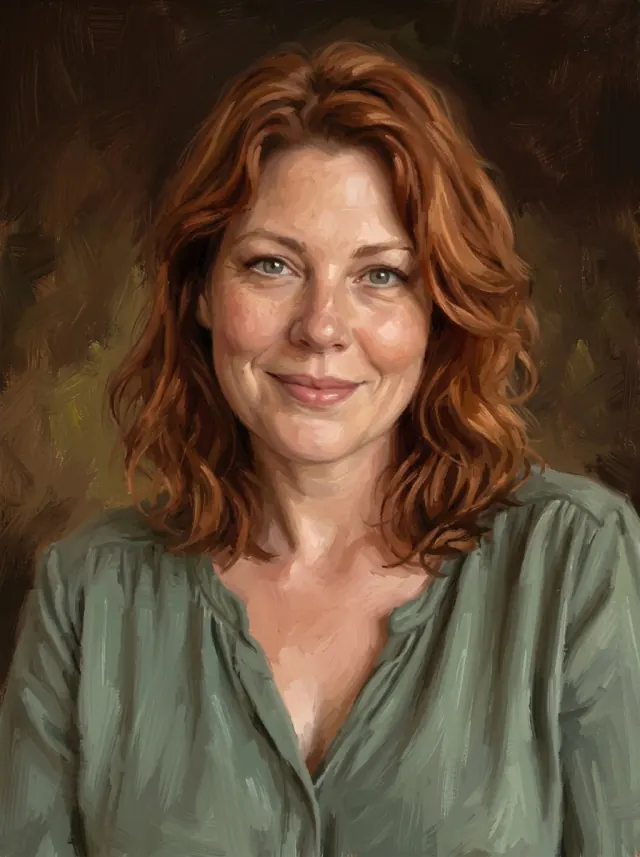
Full composition · 3:4
Centre crop · 4:5
Ask the shop whether its order form uses “fit” or “fill”, and what each option will do to your image. The wording can differ between services. If you prefer to keep the whole composition, ask how a border or mat would work with the chosen frame.
For canvas, also ask how the sides will be covered and whether any image area will wrap around them. Approve a preview showing the front and sides before printing. Our printing partner's canvas file guide illustrates the distinction between the front and additional edge areas; follow your own printer's template for its product.
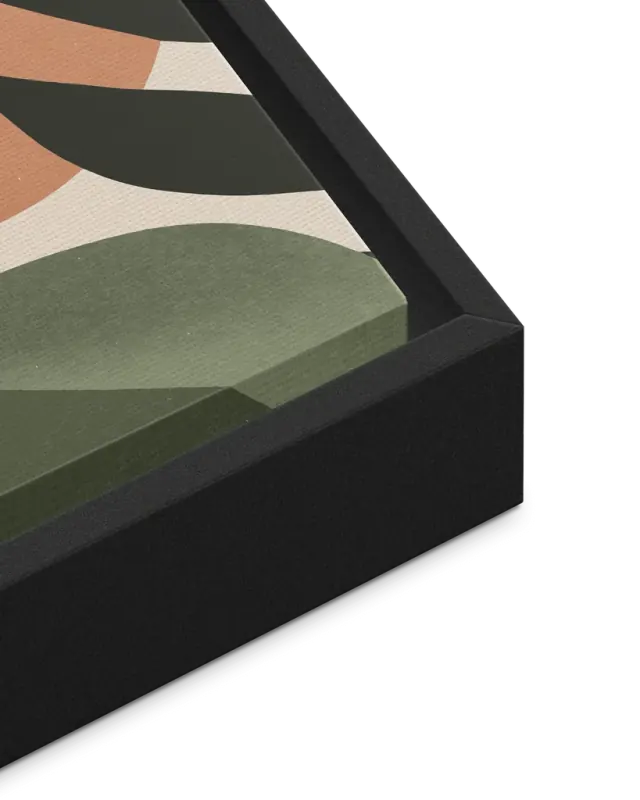
Our portrait print size guide explains the Amber catalogue sizes and why a listed image size differs from the overall framed dimensions.
Should you print at home or use a print shop?
Use a print shop if you want someone to check the file, advise on the material or produce a size your home printer cannot handle. Home printing can be a useful option when your printer supports the chosen paper and size, and you are comfortable checking its settings.
Before placing an order, confirm:
- The file: Its pixel dimensions and suitability for the requested size.
- The crop: Whether the full image is retained and what happens at the edges.
- The material: Paper or canvas, surface finish and any required mounting.
- The colour process: Which colour profile and file settings the shop requests, and whether a proof is available.
- The finished display: Print dimensions, frame opening and any mat or border.
Follow the printer's own colour-profile instructions rather than converting the file to another profile automatically. Screens and prints display colour differently. For a large or important print, ask whether you can review a smaller test print on the intended material before ordering the final piece.
You can adapt this message for a print shop:
I would like to print this JPEG at [width × height and units] on [paper or canvas]. The file is [pixel width × pixel height]. Please check whether it is suitable at that size, show me any crop or canvas wrap, and tell me which colour profile you require. Please keep the full composition unless I approve a crop.
For material choices, see canvas versus fine art paper. Amber's paper prints are available unframed or in a ready-to-hang wood frame with clear protective glazing; a third-party print shop may offer different finishes and framing packages.
Can you order an Amber print instead of arranging printing yourself?
Yes. Canvas and fine art paper are available as physical orders, with the digital artwork included. Choose the product, size and destination after reviewing your portrait, or use the digital-only option when you prefer to arrange the printing yourself.
Compare Amber's current formats and prices. If you need help finding a purchased file or checking what your order includes, contact us. To start with a new photograph, create a free preview in Free Style.